Tracking Plan and UTM Builder: Plan Your Events and Tag Every Link Consistently
Decide what to track before anyone adds a tag, and tag every campaign link the same way. This template does both, and the worked example below shows it filled in for one company.
 Saroj Jha October 4, 2026 9 min read Share Download the free templateSee the worked example
Excel .xlsx, opens in Google Sheets · No macros · Free · Pre-seed to Series B
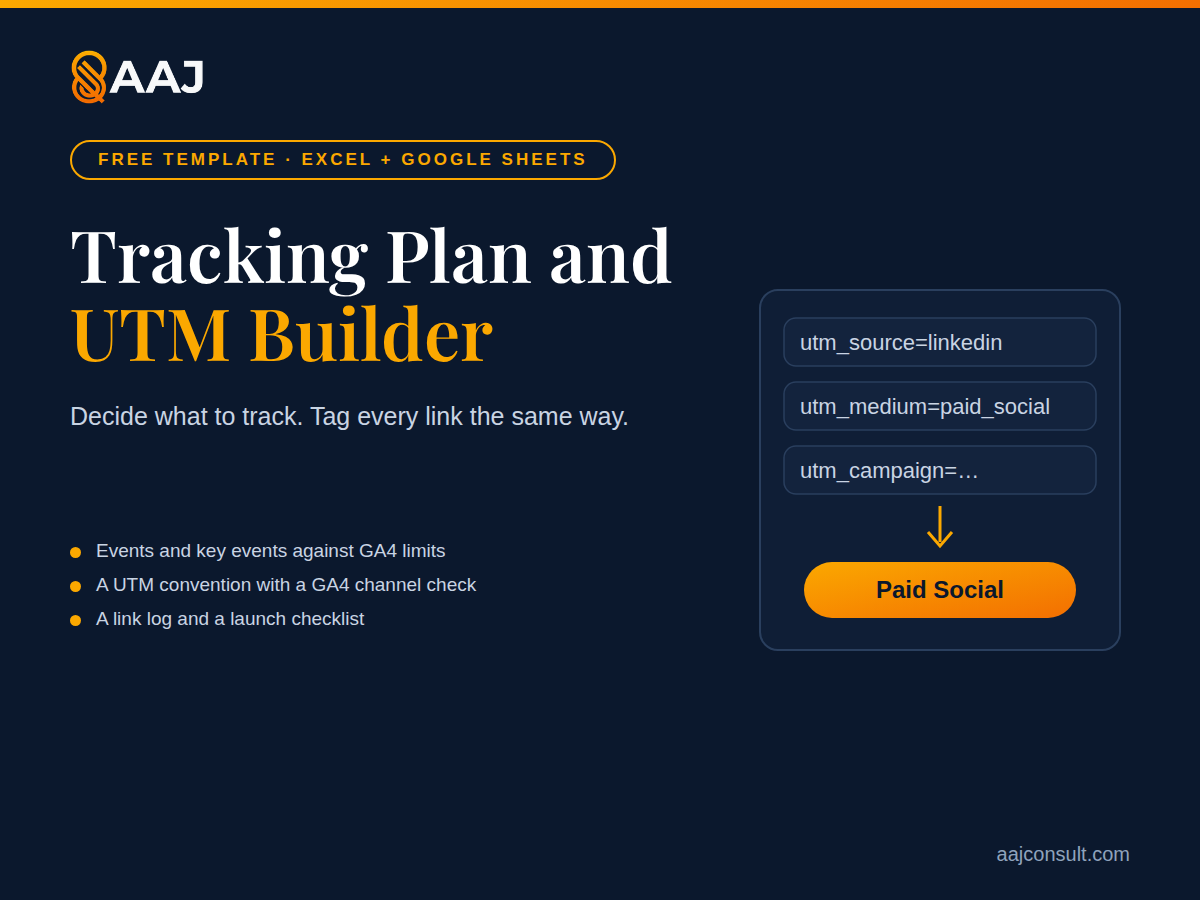
The Tracking Plan and UTM Builder helps you decide what to track before anyone adds a tag, and keeps every campaign link tagged the same way. You list your events and key events against GA4’s limits, set your UTM convention once, and the builder creates tagged links in lowercase, checks them against GA4’s default channel rules, and logs each one.
It is the working file for the post on tracking setup for startups. Use it when you set up GA4, before a launch, or when traffic starts showing up as “unassigned”.
Running case · Example Co. (fictional)
The running case: Example Co. (fictional). Example Co. is a seed-stage B2B SaaS startup whose software automates the month-end close for finance teams at companies with 50 to 500 employees. Its team of eight, including two founders and one account executive, is launching a free month-end close checklist with LinkedIn ads, a newsletter, founder outreach and a partner webinar. It wants 30 new customers in the next 12 months, so it needs to know which links bring qualified demos, not just clicks. Example Co., its partner and every value in the worked example are illustrative.
What’s inside
- Tracking plan. Each event with its name, trigger, parameters, owner and whether it is a key event, pre-filled with GA4’s recommended lead events.
- Limits check. Flags event names over 40 characters, more than 25 parameters on an event, and more than 30 key events.
- UTM convention. Your allowed values for source, medium and campaign, with source and medium values that match GA4’s channel rules.
- UTM builder. Enter a base URL and choose values from dropdowns; the sheet builds the tagged link in lowercase and shows the channel GA4 should assign it to.
- Link log. Every link created, with date, owner and campaign.
- Launch checklist. Retention set to 14 months, cross-domain, internal traffic, consent, BigQuery export, CRM fields for UTMs.
- How to use. A one-page guide with a clearly fictional worked example.
Plan the events, fix the convention, then build and log every link The four working sheets in order, and the checklist you run once before launch 1. Tracking plan Events and triggers Key events marked Flags GA4 limits 2. UTM convention Allowed sources, mediums, campaigns Checks GA4 channel 3. UTM builder Base URL + dropdowns Lowercase link Expected channel 4. Link log Every link created Date, owner, URL Where it was used Launch checklist, once: 14-month retention, cross-domain, internal traffic, consent, BigQuery, CRM fields Launch checklist, once: 14-month retention, cross-domain, internal traffic, consent, BigQuery, CRM fields
How to use it, step by step
About an hour the first time, then a minute for each new link.
- List your questions (10 minutes). Write down the decisions tracking must support, such as which channels bring qualified demos. Put them at the top of the Tracking plan sheet.
- Plan events (20 minutes). Add an event for each funnel step and mark the few that are key events. Keep GA4’s recommended lead events where they fit, because GA4 builds its lead reports from them (Google Analytics Help). The limits check flags any event name over 40 characters, any event with more than 25 parameters and more than 30 key events (Google Analytics Help; Google Analytics Help).
- Set the UTM convention (15 minutes). Choose your source, medium and campaign values; the sheet warns you if a source and medium combination won’t match a GA4 channel (Google Analytics Help).
- Build every link in the builder. Paste the page address, pick the source, medium and campaign from the dropdowns, and copy the finished link. Google says to always use
utm_source,utm_mediumandutm_campaign, and values are case sensitive, so the builder makes them lowercase (Google Analytics Help). Skip Google Ads links if auto-tagging is on (Google Ads Help). - Work through the checklist (15 minutes). Tick each setting in GA4 and your CRM, and note the date.
- Check once a month. In practice, compare the link log with GA4’s traffic reports. Anything in Unassigned, or paid traffic showing as organic, points to a link built outside the sheet.
One Example Co. link, part by part: three parameters are required A fictional link built by the UTM builder. Highlighted parts are the three Google says to always use. https://example.com/close-checklist The landing page the visitor arrives on ?utm_source=linkedin Required. Where the click came from The site or sender, in lowercase &utm_medium=paid_social Required. The type of traffic With the source, decides the GA4 channel &utm_campaign=2026q4_guide_launch Required. Which campaign The same name on every channel in it &utm_content=controller_video Optional. Which ad or link version
Worked example: Example Co.
Here is the template filled in for Example Co.’s checklist launch. Everything in this section is fictional and illustrative: the company, its partner, the links, the dates and the choices. Only the GA4 rules the sheet checks against are real.
Example Co.’s tracking plan
Eight events. Six follow the buyer from first visit to signed contract; two record the other lead outcomes. Three are key events.
| Event name | Trigger | Parameters | Key event | Owner | Status |
|---|---|---|---|---|---|
| page_view | Every page (collected automatically) | automatic | No | GA4 | Live |
| generate_lead | Close checklist form submitted | form_id, company_size | No | Founder (marketing) | Live |
| demo_request | Demo form submitted | form_id, company_size | Yes | Founder (marketing) | Live |
| working_lead | Account executive starts working the lead in the CRM | lead_source | No | Account executive, via CRM | Planned |
| qualify_lead | CRM stage set to Qualified | lead_source | Yes | Account executive, via CRM | Planned |
| disqualify_lead | CRM stage set to Disqualified | lead_source, reason | No | Account executive, via CRM | Planned |
| close_convert_lead | Annual contract signed | lead_source, value, currency | Yes | Founder (CEO), via CRM | Planned |
| close_unconvert_lead | Deal lost | lead_source, reason | No | Founder (CEO), via CRM | Planned |
Limits check (fictional plan): longest event name close_unconvert_lead, 20 of 40 characters; most parameters on one event, 3 of 25; key events, 3 of 30. All green.
Example Co.’s UTM convention
| Parameter | Allowed values | Rule behind it |
|---|---|---|
| utm_source | linkedin, newsletter, outreach, partner_a, controller_forum | Lowercase name of the site or sender |
| utm_medium | paid_social, email, social, referral, cpc | Each value matches a GA4 default channel rule |
| utm_campaign | yyyyqn_theme (2026q4_guide_launch); yyyy_mm_issue for newsletters; co_webinar_mmm for partner webinars | One name per campaign, used on every channel |
| utm_content | Short name of the ad or link version (controller_video) | Optional; used to compare versions |
Example Co.’s link log
Ten links from the first four weeks of the launch. Example Co.’s site appears as example.com.
| Date | Owner | Campaign | Source / medium | utm_content | Expected channel | Where used |
|---|---|---|---|---|---|---|
| Oct 5 | Founder (marketing) | 2026q4_guide_launch | linkedin / paid_social | controller_video | Paid Social | LinkedIn ad, video for controllers |
| Oct 5 | Founder (marketing) | 2026q4_guide_launch | linkedin / paid_social | cfo_carousel | Paid Social | LinkedIn ad, carousel for CFOs |
| Oct 6 | Founder (CEO) | 2026q4_guide_launch | linkedin / social | founder_post | Organic Social | Founder’s LinkedIn post |
| Oct 7 | Founder (marketing) | 2026_10_issue | newsletter / email | checklist_cta | October newsletter | |
| Oct 8 | Account executive | 2026q4_outbound | outreach / email | signature | Outreach email signature | |
| Oct 12 | Founder (marketing) | co_webinar_oct | partner_a / referral | webinar_page | Referral | Partner A’s webinar page |
| Oct 14 | Founder (CEO) | 2026q4_guide_launch | controller_forum / referral | forum_post | Referral | Post in an accounting community |
| Oct 15 | Founder (marketing) | 2026q4_guide_launch | linkedin / paid_social | site_visitors | Paid Social | LinkedIn ad shown to site visitors |
| Oct 19 | Founder (CEO) | co_webinar_oct | linkedin / social | webinar_invite | Organic Social | Founder’s post inviting to the webinar |
| Oct 26 | Founder (marketing) | co_webinar_oct | newsletter / email | webinar_reminder | Webinar reminder email |
The first link, as the builder writes it:
https://example.com/close-checklist?utm_source=linkedin&utm_medium=paid_social&utm_campaign=2026q4_guide_launch&utm_content=controller_video
The channel check catches mistakes before a link goes live Example Co.’s first drafts (fictional), checked against GA4’s default channel rules. Source / medium shown. First draft What the check says Fixed GA4 channel linkedin / sponsored Organic Social, so paid clicks would look free linkedin / paid_social Paid Social newsletter / newsletter Unassigned: no channel rule matches this medium newsletter / email Email LinkedIn / Paid_Social Mixed case: reports split LinkedIn from linkedin linkedin / paid_social Paid Social Dashed orange = would be misreported. Rules: Google Analytics Help, “[GA4] Default channel group” and the URL builders page.
Before any of these links went live, the channel check caught three drafts that would have been misreported. A LinkedIn ad tagged sponsored would have counted as organic social, because LinkedIn is a recognized social site and sponsored does not match GA4’s paid pattern. A newsletter tagged newsletter would have landed in Unassigned, which Google describes as “the value Analytics uses when there are no other channel rules that match the event data” (Google Analytics Help). A link typed as LinkedIn / Paid_Social would have split the reports, because values are case sensitive.
Example Co.’s launch checklist
| Item | Status (fictional) |
|---|---|
| Data retention set to 14 months (Google Analytics Help) | Done, week 1 |
| Cross-domain measurement for the website and app domains (Google Analytics Help) | Done, week 1 |
| Internal traffic excluded (practice) | Done, week 1 |
| Consent banner connected to consent mode (Google for Developers) | Done, week 2 |
| BigQuery export, starting in the sandbox (Google Analytics Help) | Done, week 2 |
| CRM hidden fields for UTMs and click ID (practice) | Done, week 2 |
What the example shows. In my view, the value of the template is not the builder but the agreement behind it: one short list of events, one list of mediums, and one log that everyone uses. Example Co. can now compare its LinkedIn ads, newsletter, outreach and partner webinar on the same key events once its CRM starts sending qualify_lead and close_convert_lead back.
Use this on AAJ
- Tracking setup for startups: the post that explains each step, with the same Example Co. case.
- Lead Management Playbook: the lead stages to track.
- Marketing KPI Report: report on what you track.
Frequently asked questions
Does this work with GA4?
Yes. The event limits and channel rules follow Google’s GA4 documentation, and the plan includes GA4’s recommended lead events.
Why lowercase UTMs?
UTM values are case sensitive in GA4, so “LinkedIn” and “linkedin” would appear as two sources.
Do I need UTMs on Google Ads links?
Not if auto-tagging is on; the builder is for every other link.
Can my team share it?
Yes. Keep one copy in a shared drive so everyone builds links from the same convention and log.
Why keep the plan outside GA4?
Because tools change. Google states that “Google Analytics 4 is our next-generation measurement solution, and it has replaced Universal Analytics”, and standard Universal Analytics properties stopped processing data from July 1, 2023 (Google Analytics Help). A written plan can be rebuilt in any tool.
Sources
- Google Analytics Help, page on recommended events. support.google.com/analytics/answer/9267735
- Google Analytics Help, page on collection limits. support.google.com/analytics/answer/9267744
- Google Analytics Help, page on configuration limits. support.google.com/analytics/answer/12229528
- Google Analytics Help. “[GA4] Default channel group.” support.google.com/analytics/answer/9756891
- Google Analytics Help, page on URL builders and campaign parameters. support.google.com/analytics/answer/10917952
- Google Analytics Help, page on data retention. support.google.com/analytics/answer/7667196
- Google Analytics Help, page on cross-domain measurement. support.google.com/analytics/answer/10071811
- Google Analytics Help, page on BigQuery export. support.google.com/analytics/answer/9358801
- Google Analytics Help. “Google Analytics 4 has replaced Universal Analytics.” support.google.com/analytics/answer/11583528
- Google for Developers, consent mode overview. developers.google.com
- Google Ads Help, page on auto-tagging. support.google.com/google-ads/answer/3095550
What this resource helps you do
Plan your GA4 events and key events, set a UTM convention that fits GA4's channel rules, build tagged links and keep a link log your whole team uses.
Get the builder from AAJ's free marketing templates library.
More in Analytics, Experiments & Budget
Part of the Analytics, Experiments & Budget hub - see all 35 resources on this topic.
- AI agent skill: A/B Test Significance
- Free tool: A/B Test Significance Calculator
- Article: A/B Testing: The Complete Guide for Startups (Purpose, Methodology, Best Practices)
- Free tool: Ad Creative Test Calculator
Also useful in Sales & Pipeline.